Shave is my favourite e-reader
I started out making the e-book functionality in Shave just with that goal in mind: converting e-books. Little did I know when I started building the reader functionality, that it would soon become my favourite part of the entire app. I have now entirely stopped reading in Apple-books, my previous reader of choice.
Why? Because, as well as being able to do everything I was able to do in apple books, I can also tap on words to see the original latin script version of the word, or I can switch to side-by-side mode if I need even more context. This is particularly useful in a number of specific cases:
- When the word itself is unfamiliar. I find this is particularly common when reading public domain titles, as the common venacular has shifted over time.
- When the author was using unusual or made-up words, like in Winnie-the-pooh, or if they were trying to write phonetically, like Shaw’s attempt at capturing Eliza Doolittle’s cockney accent in the ‘traditional orthography’.
- When Shave has simply messed up. This case is happening less and less often, I’m happy to report, but it can still mess up from time to time.
In that last situation, it is bloody marvellous to just be able to go in to the edit mode and fix it. Or t highlight the mistake to come back to it later.
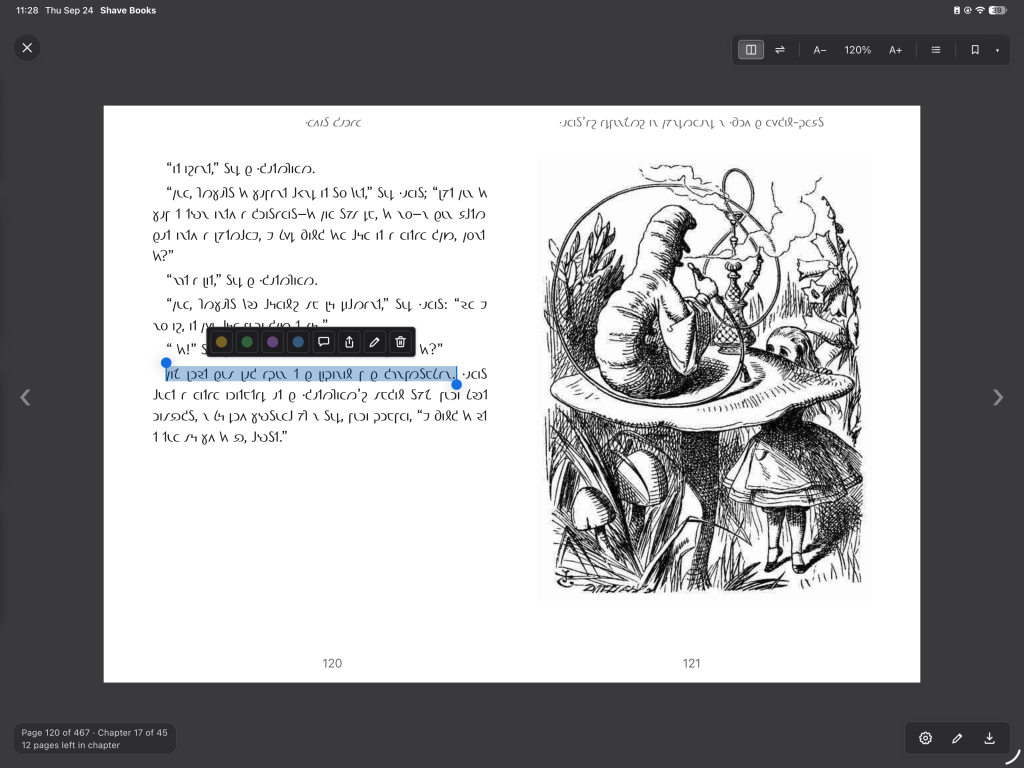
It has all the features I know and love from my other readers too:
- Synchronising your library across devices, including the page you are on in each book
- Make bookmarks, highlights and notes, and synchronise all those across devices too
- Ability to change font or font-size
- Proper dark-mode support
- You can download books to read offline
I believe a lot more of you would love the reader as well if you’d give it a spin! Here are a number of tips for first time (and returning!) Users:
- You can use Shave on any platform. It’s been optimised for both desktop and mobile; my favourite device to use it on is actually my tablet.
- On Ios in particular, you can save the Shave books app to your home screen, and it will look and feel like a fully self-contained app.
- You can convert any DRM-free e-pub book with the tool. You can go straight into reading it, but it often pays off to go over at least some of the errors in edit mode first.
- There are dozens of pre-converted titles already on the platform! If you sign in, you can read as many of them as you like. Several of these have already been corrected for the most obvious transliteration errors.
- If you’d rather read the books on your Kindle or other dedicated e-book reader, such as Apple books, that’s no problem! You can download the converted book and do what ever you want with it.
- On desktop, you can use keyboard shortcuts to navigate the ap, like using cursor keys or the space bar to turn pages, and many many more. You can press ‘?‘ To discover them all.
- If you don’t like the font that was chosen by the owner of the book, you can override it in the settings menu. In fact you use the same setting to determine what font will be used in your exported e-books too.
- Most of the books in the library use British spelling. If you’d prefer to read books in using American spelling conventions, you can copy the British one and re-transliterate it in American. The best thing about this: the corrections from the British addition will get copied along with the book, so you will have less work to do than you would have if you would be starting from scratch.
- Its easy to share the books you have converted. You can either share the book read-only, or decide to let others make changes to it too. You can share books privately (by sending someone a link to it) or you can share it with the entire community.
- More of an editor feature this one, but the app has an inbuilt virtual shavian keyboard. I have found this particularly useful on devices with no way of switching to a shavian keyboard, for eg, when using an external keyboard on an iPad.
- You can add as many notes and highlights as you want!
Leave a Reply